
There is a useful tool in Planning that I think gets overlooked. The Audit feature provides a huge amount of information that can help administrators troubleshoot a variety of problems. In the on-prem days, it was discouraged to generate these kinds of files due to storage and performance concerns. But in Cloud EPM Planning that is not a problem, I have not seen nor heard of performance issues, and unless Oracle says differently it does not present a storage issue either.
The number of tasks available to audit has steadily increased over the last few years. As of today, there are 18 items available to audit. The full list can be found here. The ones I have found most useful are Data, Dimension Administration, and Launch Business Rules. Analyzing these has helped me to troubleshoot issues with data, who ran a rule and when, or if the metadata has been altered. But by having all enabled, I can review many other types of changes that have occurred. And all of it is exportable to an Excel file. Plus, it might be the easiest thing to configure in Planning.
To get started, auditing needs to be enabled. Go to Navigator > Tools > Audit.
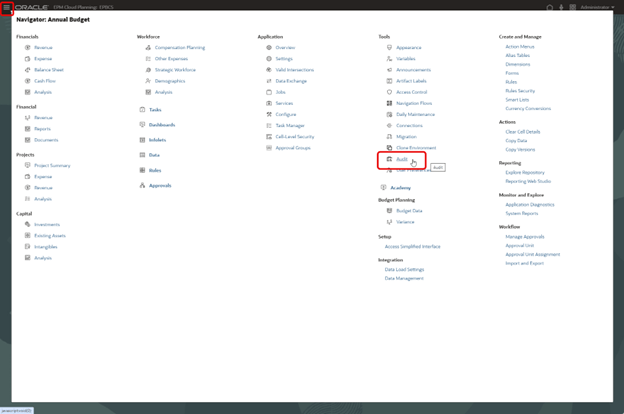
Click on Enable Auditing and select all the available items in the list, then click Save and Close.

Once auditing has been enabled for a few days, you will be able to see all the information. From the Audit page, click on Filter.

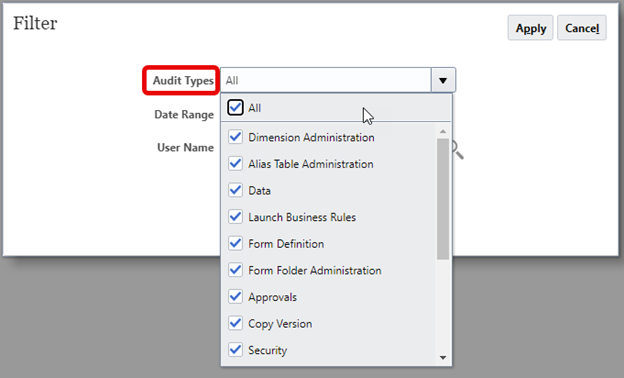
Select the specific items to review or select All to get everything. This is typically what I select, then after exporting to Excel I can filter to different items.
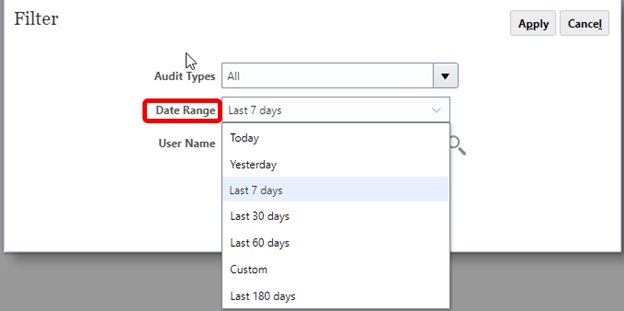
Select a date range for the information. You cannot select a range greater than 180 days from here, but you can select up to 365 days by using EPM Automate.
Select a specific user in User Name or leave blank to select All Users. Click Apply.

The page will display the first 200 records. Click Export to export to an Excel file.

With the output in Excel, you can filter and sort to analyze the details.

One of the first steps I take when setting up a new application is to enable all the items in Audit. And when I encounter an existing application that doesn’t have Audit enabled, or only some items, I have a discussion with the client about the benefits of turning it all on.
As always, happy EPM’ng!
 Random EPM Notes