
Updated: September 23, 2024
After posting this yesterday, my friend Fred Mamadjanov suggested the problem with the failed status could be the formatting of the user.csv file. He had discovered in his own testing that a header row was not necessary. I removed the header from my file and re-ran simulateConcurrentUsage. Success!
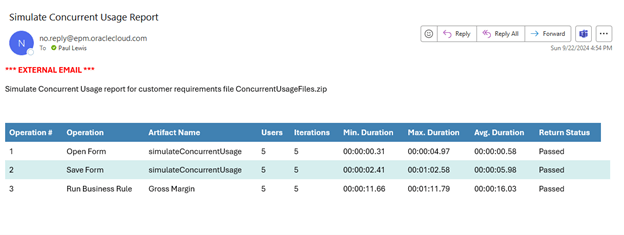
Read on for how this started, and thanks again Fred.
*******************************************************************************
A while back I wrote about the EPM Automate command simulateConcurrentUsage (here and here). A number of things have changed since the command was first introduced. One of the more recent updates is that it can now be run with Service Administrator credentials whereas previously only Identity Domain Administrators had full access to functionality. This change is possible because instead of creating temporary users for the simulation, existing users can be used. Let’s take a look at how this works.
To keep this simple, I am going to reuse the files created in the original testing. I did have to recreate the form. In the Vision application, the form looks like this.

The form POV contains Scenario, Year, Product, Entity, and Version. Entity and Version have User Variables assigned. We will need this information to create files for the EPM Automate command to use.
The basic steps are to create a requirements file, an operations file, and an optional user variable file. These files are saved as CSVs and put in a zip file that is uploaded to the environment. We created the files in Notepad++ and saved them as CSVs. You can refer here for the details on creating these files.
We also need to create a file with the users to use in the simulation. The format is a header and lines for each test user.
loginname,password
jdoe,jdoe_pwd
john.doe@example.com,john_doe_pwd
Add this file to a zip with the other files. Now we can run the EPM Automate command. We could do it from the EPM Automate command prompt, but we prefer to create reusable scripts to run our EPM Automate commands. We will also include in the script the uploading of the zip file. (Note: The full script will be included at the end of this post)
The command line itself is simple.

- EPM Automate command.
- Name of zip file within double quotes, though not necessary with this file name, a habit we have for when the file names have spaces or other characters.
- Iterations is the number of times to run each use case in the requirement file. If not specified, the default is one.
- Optional email addresses to send the results of the test. If not included, the results are sent to the user that initiated the command.
Here’s where the new functionality comes in. Previously the parameter “testMode” would be put at the end of the command after the optional email addresses and it would be 0, 1, or 2. Now there are the additional parameters of 3 and 4. Per the Oracle documentation:
3: Runs the simulation using already existing simulated users without adding or deleting users.
4: Uses the users defined in the users.csv file included in the input ZIP file to run the command. See Creating the users.csv File. This mode does not create users for simulation. Instead, it uses existing users.
We added testMode=4 to the end of the command so it now looks like this.

While the simulation is running, we can check progress from the Jobs Console. So far, so good, it appears that the rules and Smart Push are completing successfully.

The results showed up in our email after the simulation was completed.
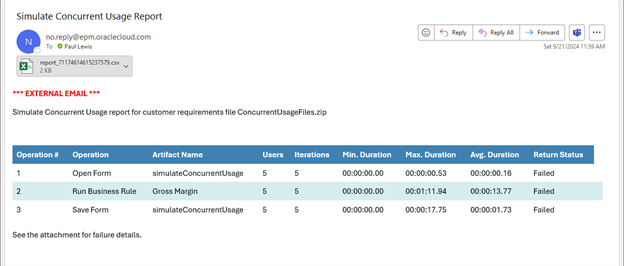
Unfortunately, the status was “Failed” for each task, which does not make sense when compared to the Jobs Console which shows successful completions of each rule and Smart Push. The attached detail file does not provide much help in understanding the reasons for failure.

We updated the requirements file to just run one business rule with one user.

Even with only one task, it took 45 minutes to complete and still came back as “Failed”. And the rule does not show up in the Jobs Console at all.
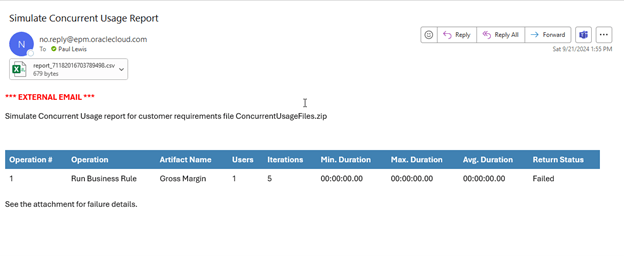
At this point, I do not know what the problem could be. Two failure reports, but the first one had activity in the Jobs Console while the second one did not. Maybe using the original files from the testing last year caused a problem. I reviewed each file and updated a couple of things. The original requirements file had the order of the operations as “Open Form, Run Business Rule, Save Form”. I changed the order so it goes “Open Form, Save Form, Run Business Rule”. I also noticed the file path for Save Form did not include Library/ in the original, so I updated that.
I created a new zip with all the files and ran the command. The Jobs Console shows activity.
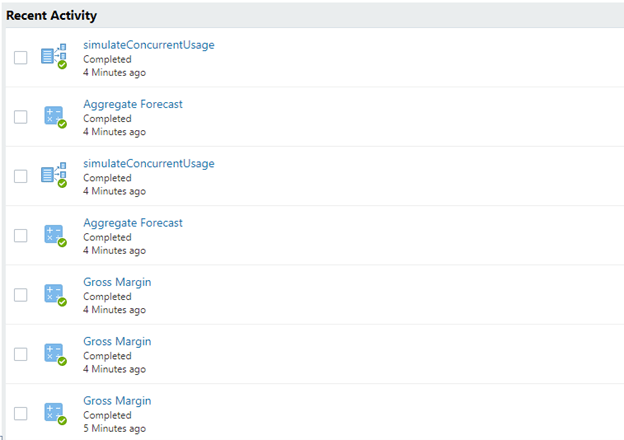
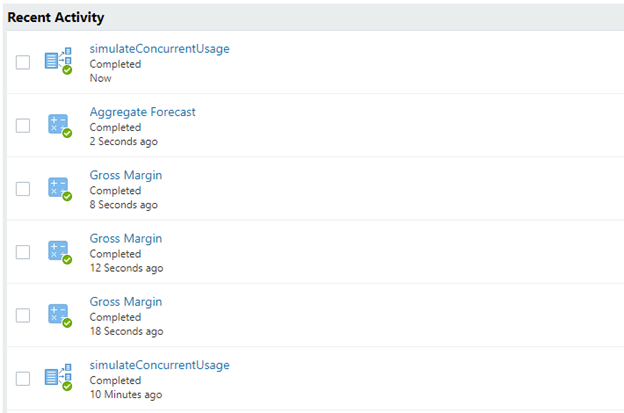
The business rule “Gross Margin” ran successfully three times, and the form save ran successfully two times including the attached business rule “Aggregate Forecast” and the Smart Push.
After several minutes I checked the Jobs Console again and see more activity.
After a full hour, I received the completion email. And once again it showed “Failed”.
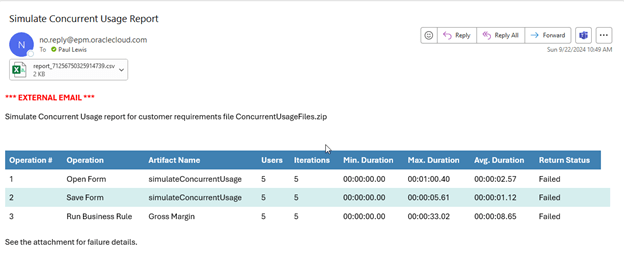
I will open a SR with Oracle to get some answers. What we can tell from the status email is the minimum, maximum, and average times for the Open Form, Save Form, and Run Business Rule.
Overall, this is a good new feature in the simulateConcurrentUsage command. Allowing Service Administrators to run this opens up more opportunities to use the command in development and maintenance. But we need to determine if something is wrong in our files, the parameters we used in the command are incorrect, or if it is a bug.
As always, happy EPM’ng!
P.S. Check out this post from Fred Mamadjanov about using the command for performance and security testing.
Here is the full script.
@echo off
REM  **************************************************************************************
REM  *    Purpose: simulate concurrent usage                                                      *
REM  *    Author: *
REM  *                                                                                    *
REM  **************************************************************************************


REM  **************************************************************************************
REM  * EPM Automate Login Information                                                     *
REM  **************************************************************************************

REM  environment
SET  Target_url=https://<epm environment>.oraclecloud.com/epmcloud
SET  Target_user=epmuser1
SET  Target_password="C:\epmautomate\EPMAutomatePassword.epw"

REM  **************************************************************************************
REM  * Login                                                                              *
REM  **************************************************************************************

call epmautomate login %Target_user% %Target_password% %Target_url%

REM  **************************************************************************************
REM  * upload zip with concurrent usage files                                                                      *
REM  **************************************************************************************

call epmautomate deleteFile inbox/"ConcurrentUsageFiles.zip"
call epmautomate uploadFile "C:\epmautomate\Concurrent Usage Files\ConcurrentUsageFiles.zip" inbox

REM  **************************************************************************************
REM  * simulate                                                                      *
REM  **************************************************************************************

call epmAutomate simulateConcurrentUsage "ConcurrentUsageFiles.zip" iterations=5 notificationEmails="jane.doe@argano.com;john.doe@argano.com" testMode=4


call epmautomate logout

exit
 Random EPM Notes