
I posted the other day about the recently released EPM Automate command called simulateConcurrentUsage. We were not able to get the command to work and we opened a SR with Oracle about it. Fortunately, it was an easy fix and not a bug as they originally thought. The upload location has to be specified instead of uploading to the default. This was not detailed in the Oracle documentation.
This command can be used to simulate multiple users performing certain activities, including opening forms, running data rules, and running business rules. Ideally, this command can provide administrators with a tool to test changes to applications and any performance impacts of those changes. This is one of the more complicated EPM Automate commands I have encountered, so I will do my best to lay out the steps as easily as possible.
As a starting point, we created the Vision sample application. Using one of the sample forms, we replicated it and attached a basic rule and a Smart Push.

The form POV contains Scenario, Year, Product, Entity, and Version. Entity and Version have User Variables assigned. We will need this information to create files for the EPM Automate command to use.
The basic steps are to create a requirements file, an operations file, and an optional user variable file. These files are saved as CSVs and put in a zip file that is uploaded to the environment. We created the files in Notepad++ and saved as CSVs.
Requirements File
The requirements file defines the type of operation, the artifact name, number of users for concurrent simulation, and the name of the file with the input values. It can include multiple operations, define each on its own line. For our testing, we want to open a form, so the file looks like this.

Operations File
The operations file defines the POV members to be used in the testing. This should include all the POV members that are selectable or that use a User Variable. For User Variables, use the variable name to be referenced.

User Variable File
The file UserVarMemberMapping defines the member values for each User Variable in the form. This file is only used for operations Open Form and Save Form based on whether the form has variables. If no User Variables are in the forms, this file is not needed.

These 3 files (or 2 if you don’t have any User Variables) need to be put in a zip file and uploaded to the environment. Important: The upload needs to go to the inbox. This is not specified in the documentation. Use the upload command appended with inbox. We named our zip “ConcurrentUsageFiles.zip”.
epmautomate uploadFile “ConcurrentUsageFiles.zip” inbox
With the files ready, we can now run the EPM Automate command. We could do it from the EPM Automate command prompt, but we prefer to create reusable scripts to run our EPM Automate commands. We will also include in the script the uploading of the zip file. (Note: The full script will be included at the end of this post)
The command line itself is simple.

- EPM Automate command
- Name of zip file within double quotes, though not necessary with this file name, a habit we have for when the file names have spaces or other characters.
- Iterations is the number of times to run each use case in the requirement file. If not specified, the default is one.
- Optional email addresses to send the results of the test. If not included, the results are sent to the user that initiated the command.
There are also optional parameters for test mode and lag time. For our purposes the defaults are sufficient.
The email with testing results came back as failed.

Reviewing the file that was attached to the email does not provide particularly useful information.

After rereading the documentation, I see our mistake. Required Roles states “Service Administrator. You require Identity Domain Administrator role also to use testModes 0, 1, and 2.” The wording of this is odd since all test modes, whether explicitly defined or using the default of 0, require the Identity Domain Administrator role. We updated the role of our test user and reran the process (we also changed the number of simulated users to 5 for this test). This time was successful.
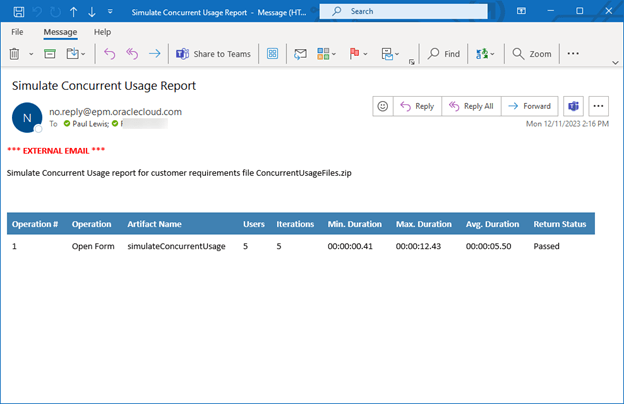
The results show minimum, maximum, and average time of opening the form. Depending on how many operations being tested, how many simulated users, and how many iterations, it could take a while for the process to complete. For our simple test of opening one form with 5 simulated users over 5 iterations, it took a bit over 5 minutes. We will need to do more testing to determine an appropriate number of users and iterations. Another important note: The command creates usernames for the simulation as “testuser1”, “testuser2”, etc. The application cannot already have users with these usernames, which will cause a conflict with the creation and deletion of usernames as part of the simulation.
Before and after testing:

During testing:

Overall, this is pretty cool functionality. I will be testing the other operations available and extending it to include multiple forms and business rules. Though the upfront configuration is time consuming, once the files are created the process can be reused. I envision creating a set of operations to test and running monthly after Oracle releases updates and/or after any application changes are implemented.
As always, happy EPM’ng!
Many thanks to my colleague Ricardo Caso for helping me with this testing.
Here’s the full batch script.
@echo off

REM  **************************************************************************************

REM  *    Purpose: simulate concurrent usage                                                      *

REM  *    Author: Argano                                                      *

REM  *                                                                                    *

REM  **************************************************************************************


REM  **************************************************************************************

REM  * EPM Automate Login Information                                                     *

REM  **************************************************************************************


REM  Argano environment

SET  Target_url=https://<epm environment>.oraclecloud.com/epmcloud

SET  Target_user=epmuser1

SET  Target_password="EPMAutomatePassword.epw"


REM  **************************************************************************************

REM  * Login                                                                              *

REM  **************************************************************************************


call epmautomate login %Target_user% %Target_password% %Target_url%


REM  **************************************************************************************

REM  * upload zip with concurrent usage files                                                                      *

REM  **************************************************************************************


call epmautomate deleteFile inbox/"ConcurrentUsageFiles.zip"

call epmautomate uploadFile "C:\Users\PaulLewis\ConcurrentUsageFiles.zip" inbox


REM  **************************************************************************************

REM  * simulate                                                                      *

REM  **************************************************************************************


call epmAutomate simulateConcurrentUsage "ConcurrentUsageFiles.zip" iterations=5 notificationEmails="john.doe@argano.com;jane.doe@argano.com"


call epmautomate logout


exit
 Random EPM Notes
Hi Paul, I followed above steps but I’m get below error message;
EPMAT-1:A file identified in the requirement.csv file is not available in the input file.
Can you please help. Thanks.
LikeLike
Which operation are you trying to run? I am having problems with Save Form, the operations Open Form and Run Business Rule are working as expected.
LikeLike
I’m getting this error when I run Open Form operation. Is it possible for you to share all your csv files at nikhilanand80@gmail.com so I can compare and see where I’m going wrong.
LikeLike
Hi Paul, I followed above steps but I’m getting below error;
EPMAT-1:A file identified in the requirement.csv file is not available in the input file.
can you please help. Thanks.
LikeLike
Hi Paul/Nickkk21,
We are also having same error as below… Did you fix the issue?
EPMAT-1:A file identified in the requirement.csv file is not available in the input file.
Thanks
LikeLike
No luck yet.
LikeLike
Hi everyone, i had this error: (Solution)
EPMAT-1:A file identified in the requirement.csv file is not available in the input file.
The problem that i had was that when i made the zip file, i was selecting the folder instead of the 2 or 3 files required, so inside the zip file is a folder and not the expected requirement.csv file, so try selecting the individual files together and make a zip of it, that helped me resolve that
LikeLike
Hi everyone, i had this error: (Solution)
EPMAT-1:A file identified in the requirement.csv file is not available in the input file.
The problem that i had was that when i made the zip file, i was selecting the folder instead of the 2 or 3 files required, so inside the zip file is a folder and not the expected requirement.csv file, so try selecting the individual files together and make a zip of it, that helped me resolve that
LikeLike